Introduction to Video Monitor Platform Functions
1、Login management
1.1、Password Memory
Implement password memory options on the login interface, so that users use this software on secure computers without having to repeat the password, which matches the user name。
1.2、Custom Login
Automatically access the login interface, the user automatically login on the last login when opening the software without clicking on the login button。
1.3、Password Changes
The user login can be used to effect changes in its own login password by changing the password button. The correct old password must be entered when the changes are made. If the old password is correct, the user password will be changed successfully.。
2、Image Browse
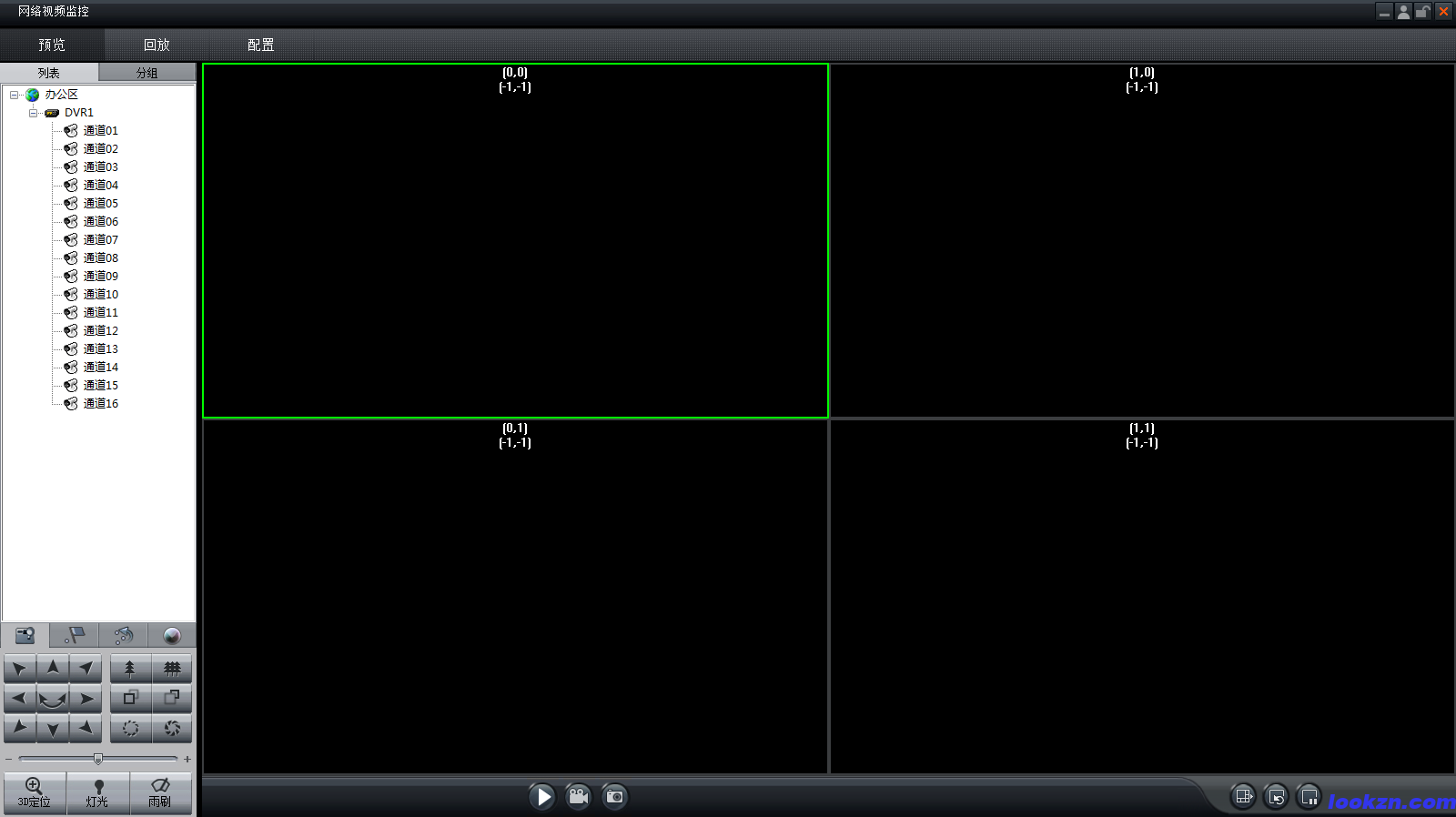
2.1、Drag Operations
Drag operation includes two operations:
User can drag the device channel by drag and drop to a window;
The user can also drag and drag an image of a window into another window to play;
2.2、Image Grab
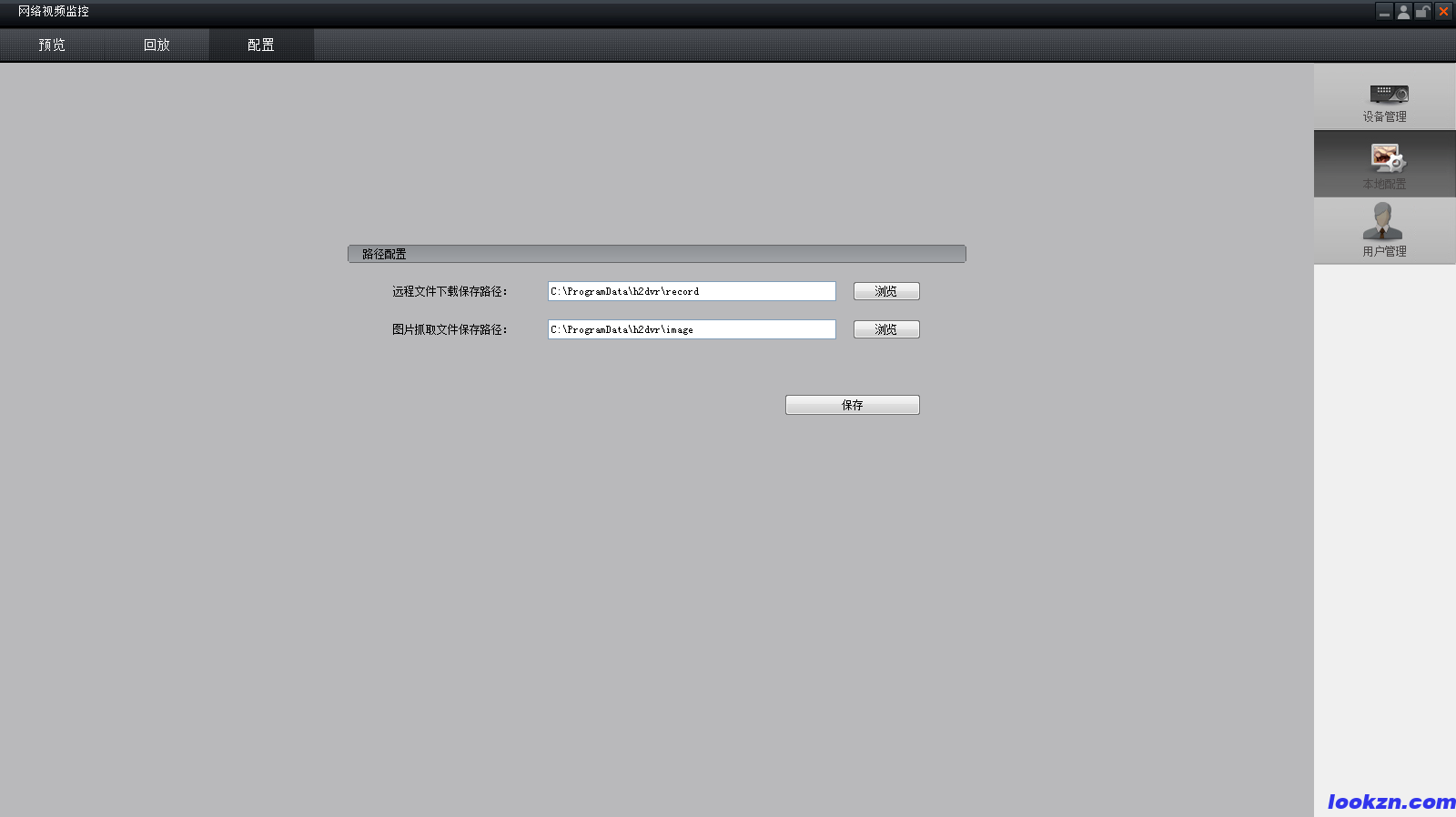
When a window is selected, the user can capture a frame image from the current window by scratching a button, and the image file is stored as a predefined path。
2.3、Local Video
When a window is selected, the user can use the start video button to make the current window video available, and the storage path for the video file is preset.。
2.4、Two-way voice
Under the image view interface, right click on the device node in the device list. Select the Start Talk item to engage in a two-way voice conversation with the selected device。
2.5、More calls.
Systems support is provided for voice-to-mouth with multiple devices, and no voice-to-voice between devices。
2.6、More surveillance.
The system can tap audio signals from multiple devices simultaneously, reflecting multiple calls.。
2.7、Virtual camera
The system can freely set the channel images displayed in each window to achieve a combined display:
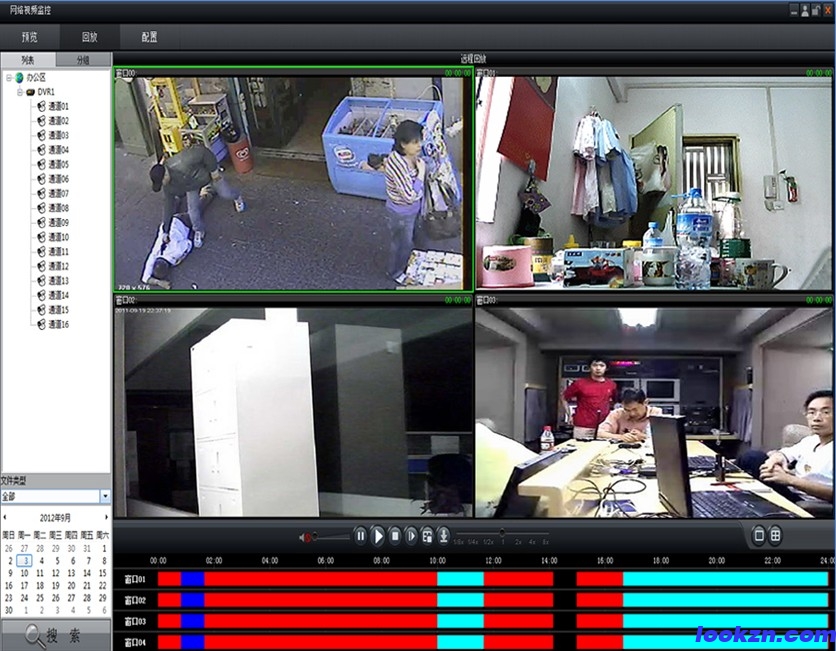
2.8、Play it back instantaneously
Play it back in time, or local, and return the local video saved while viewing the image
2.9、Image Enhancement
Image enhancement is done by attaching some information or changing data to the original image by means of selective highlighting of features of interest in the image or by discouraging it(Cover.)Some of the required features in the image match the image to the visual response feature. In the process of image enhancement, the causes of the image's degradation are not analysed and the processed image is not necessarily close to the original image。
2.10、Electronic map navigation
2.11、Multilevel electronic maps
Supports electronic maps of multiple vectors, from city to district to town/town to monitoring point. Electronic maps show visual monitoring sites and locations, and can search cameras and view video images according to physical location; and, when a police incident occurs, the location of an alarm on a map will be quickly and accurately located to the actual location where the alarm occurred.。
2.12、Image Mode
Image pattern supports 1/4/6/7/8/9/10/12/13/16 image pattern display。
2.13、Maximum number of windows
When the image pattern is adjusted to 16, it will be possible to display 16 images simultaneously.。
2.14、Camera Layout
Preset Points for Cameras
2.15、Television wall layout
2.16、Layout (camera) tour
2.17、Screen Lock
Lock the user button above the right window to achieve locking on the screen, and the user cannot do anything after locking, and must re-enter the password if it is required。
2.18、Multiscreen image viewing
Up to 4 screen images viewed。
3、RecordingPlayback
3.1、Multiple lens search
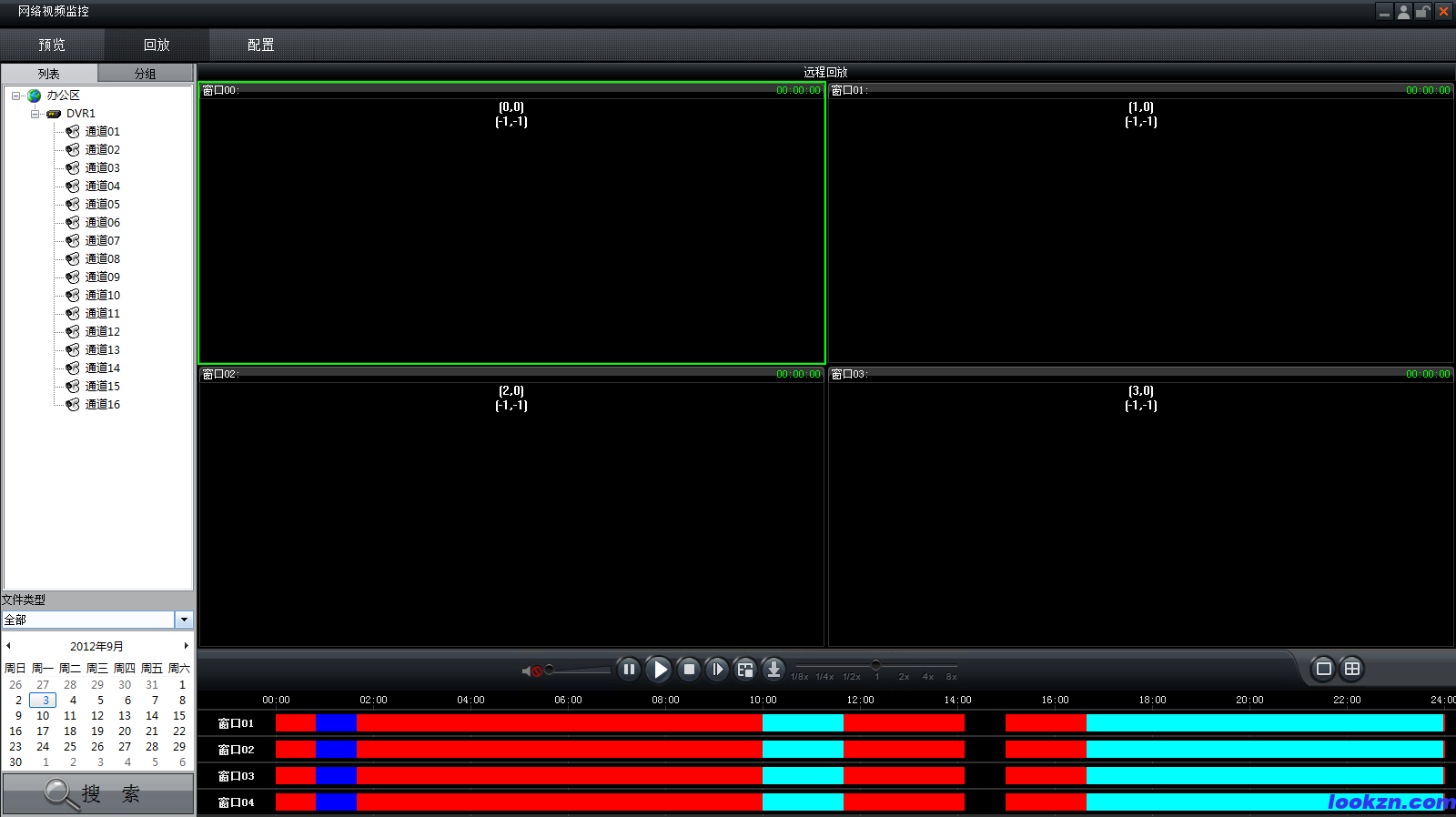
Search video data from device access for replay, mainly for remote replay。
3.2、Multifiles Back
The system can support multiple images and return local video files in an anecdotal manner。
3.3、Multi-Sync Back
The system can support multiple images and simultaneously remotely replay channel videos in sync, provided that the channels are ready for NTP matches before the video is recorded。
3.4、Bookmark Management and Search
The system allows bookmarks for each video, and searches for bookmarks as a search condition for playbacks。
Add Tab
The main preview playback window is in a playback state, click on the Add Default Tab key, add a label with the default name " TAG " , click on the Add Custom Tab key, add a user-defined label。
Tag Management
Move the mouse to the time axis, click on the time axis control button and zoom in or narrow the time axis scale, view all labels of the video segment and indicate the label position。
Tab Download
Play window in playback status, click on the Tab Download key, open the tab download interface, tick the tag video that needs to be downloaded, click [download], and download device video files to local。
3.5、Organisation
Event retrieval replays are the retrieval of video files by type of event (mobile detection, signal-inputing alarm), and the qualifying event video in the video is listed for replay to facilitate the location of the video files。
Note: Eventback feature requires equipment support。
3.6、Cream search.
The video time system allows for the simultaneous preservation of snapshots of video files and the search for video files as a search condition for them to be returned.。
3.7、Single Frame Back
The user can play back through a single frame play with a button, and watch out for the following::
(1)Single-frame back-clicking mode, every time you click, video files move forward one frame.。
(2)Only the audio of one window can be opened at the same time when playing back, and if the sound of opening the next window is automatically closed。
3.8、Sync AVI conversion
Video recorded is not coded because of the different access devices and requires simultaneous and uniform encoding。
3.9、Video Snippet
Collapse multiple videos into a series of video segments
3.10、Backplay Front
3.11、Behaviour analysis
The dynamic analysis function allows the analysis of existing files on the hard disk video recorder to identify a time period for the image, such as a moving person or object. The user can set the time of the start and end of the analysis, the area of analysis and the sensitivity of the analysis, and the time period of the analysis will be shown in red on the timeline.。
Note: The use of dynamic analysis requires equipment support。
During video playback, click on Dynamic Analysis keys to enable dynamic analysis. Drag to draw a rectangular area, the dynamic detection area, by pressing the left mouse button in the playback window. Click Clear the set area. Click, set the full screen dynamic test. Set the sensitivity, click Start video dynamic analysis.。
The qualifying video will be shown in red on the timeline.。
4、Move Detection
4.1、Multi-regional support
When it's opened, multiple channels can be detected simultaneously.。
4.2、Directional determination
Detection of alarms based on predefined logic and the course of motion objects, mainly in alarm functions。
4.3、Sensitivity setting
4.4、Call the police.
The main purpose of mobile detection is to alert the police by triggering a snapshot or video, with the scratching function requiring hardware support and a pre-defined video plan。
5、Cloud control
Before performing cloud control, confirm that the cloud decoder parameters are set correctly. The decoder parameters can be set by the client software remotely.。
5.1、PTZControl area
5.2、Floating Clouds
Users can control the cloud by clicking and dragging on the play window。
5.3、PCKeyboard
Control the direction by monitoring.。
5.4、Simulate Keyboard
Control by clicking with a mouse through virtual keyboard
5.5、AutoZoom
Click on the cloud control panel, click on the position of a left button on the playscreen to drag a rectangle window, click on the position of a left button on the playscreen to drag a rectangle window to drag, click on the left button on the playscreen to drag a rectangle window to drag a left button to drag a window to drag, and the ball machine to auto-swipe and show the dot to middle。
The direction in which the mouse moves will determine that the play-up or downplay will be played. Drag the mouse from top left to bottom right, and the image of the rectangle window will be enlarged when the left key is loose. Drag the mouse from bottom right to top left, and the image of the rectangle window when the left key is loose will be narrowed。
Note: AutoZoom functions require private agreement support from cloud-tops。
5.6、Preset bitname
Presets are also called pre-positions, a set-up for recording the cloud stand position.。
When the cloud stands are moved to the desired location, click, enter the pre-point name to complete the addition or modification of the pre-position。
5.7、Preset Queue
Multiple pre-positions can be rotated, with particular attention to pre-positioning images during the monitoring process。
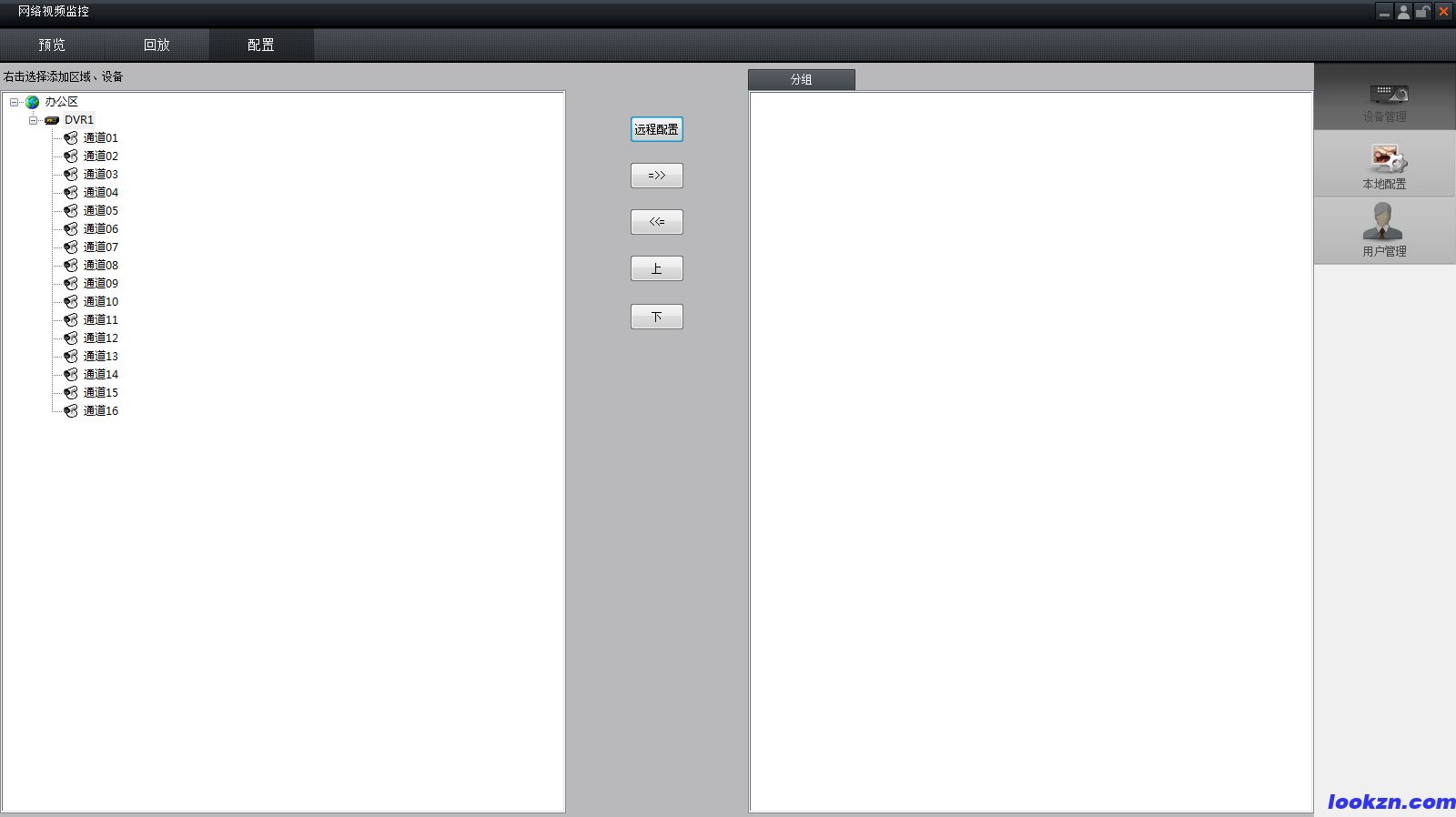
5.8、Remote Configuration
5.9、Batch Configuration
Batchable Configuration of DVR general parameters。
6、Video plan
By storage configuration, you can set the size of the package of the current video file in the local PC's save disk and video file in preview status。
Select the [Video Plan] in the Monitor Configuration to set up the device's video, snapshot plan。
6.1、Sync recording
When we were filming,
6.2、Planned copy/paste
Copying and pasting, equivalent to planned tasks, in accordance with pre-set video rules。
6.3、Video Template
6.4、Double-Swipe Video
To support more sensitive end-flow requirements such as mobile video, the main and secondary stream two-yard flow pattern is generally used
7、Call the police.
7.1、Operational Steps
Step 1: Select the equipment needed in the left device tree and activate the alarm type and alarm connection type settings. Note: video anomaly alerts are correctly programmed for the device, but no video alarms are generated for exceptional reasons。
Step 2: Select the type of alarm that needs to trigger alarm connections so that state is selected。
Step 3: Select the type of alarm connection that needs to be triggered by the selected type of alarm, so that the state is selected。
7.2、Call-in type
8、Permission Management
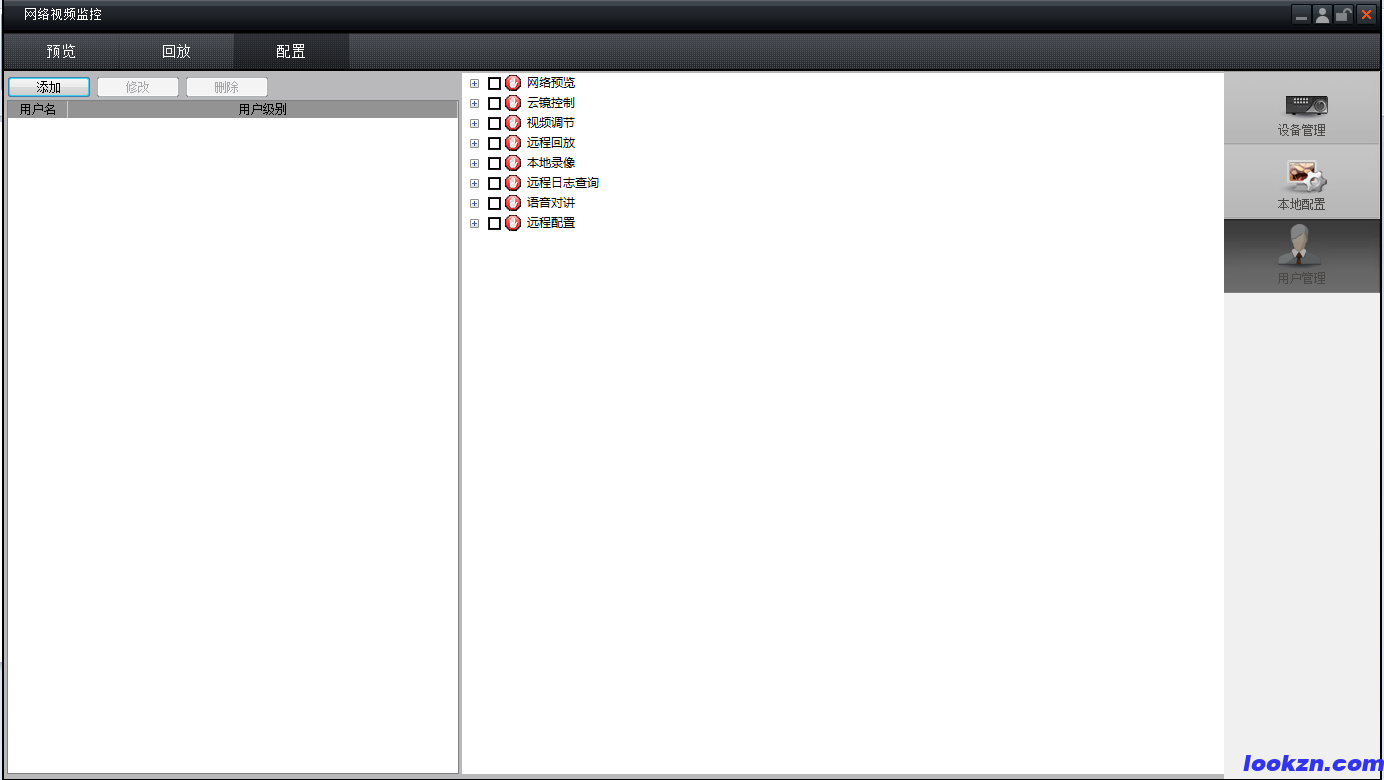
Select a normal user, click on the permission tree on the right side of the user management window to add or delete permissions for the corresponding user。
9、Log administration
The log types are as follows::
9.1、Real-time log
Logs generated by the system in real time, which can be viewed in the process window, or searched in the history record。
9.2、Log Query
Step 1: Select the relevant area, device or channel that requires log search。
Step 2: Select the type of log and associated subtypes to be consulted。
10、Dataset Integration
The following information can be integrated from peripherals::
(1)、Temperature data
(2)、Restricted data
(3)、POSData
11、Other Functions
It's mainly the development of some support functions.。
11.1、Client communication
It allows text, pictures, voice, video communication
11.2、Client Desktop Sharing
Realize desktop sharing
11.3、Audio-View Adjustment
11.4、Pictures, Burns
Previous Article:Physical Networking System Management Platform
Next Article:Smart security platform


